Chatbot vs Form: Which Converts Better?
Chatbot vs form: how each works, when a simple form is enough, when a chatbot is worth testing, and how to compare them fairly on your site.

You're getting visitors to your website. They scroll, they read, they even click "Contact Us." Then they see a form with nine empty boxes. And they leave.
If that sounds familiar, you've probably asked yourself the chatbot vs form question: would a chatbot capture more of those visitors than the form you have now? It depends on what you're asking for. A short form works well for simple requests. When visitors need guidance, or have questions before they hit submit, a chatbot is worth testing. This guide walks you through both, so you can pick the right one for each page on your site.
What's the Difference Between a Chatbot and a Web Form?
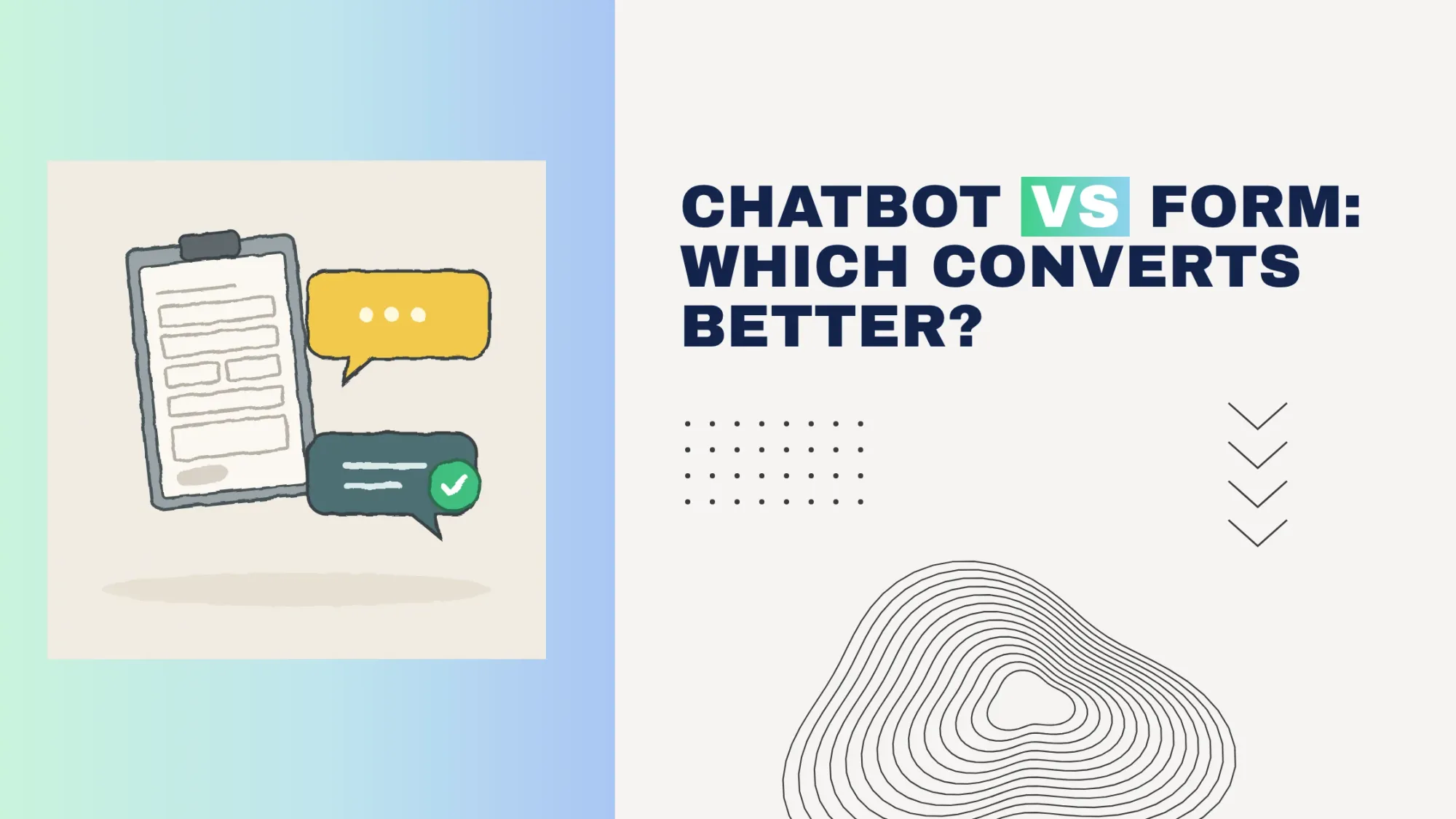
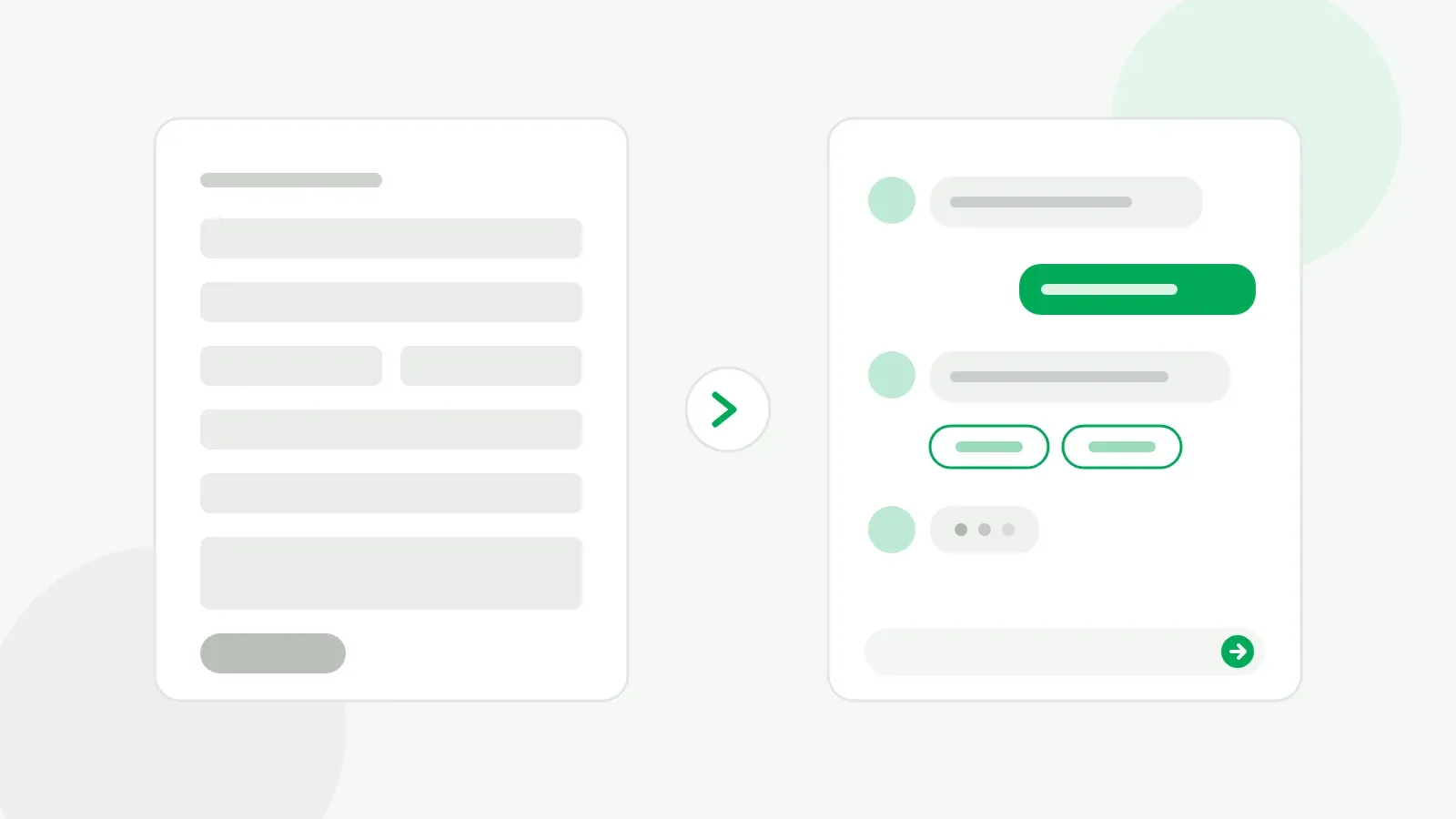
A basic single-page form typically shows its questions together. The visitor sees all the fields, fills them in, and clicks submit.
A chatbot asks the same questions one at a time, as a conversation. It greets the visitor, asks a question, waits for the answer, and moves on to the next one.
Both can collect the same information. What changes is how it feels to give it, and for some visitors, that changes whether they finish.
Chatbot vs Form: Side-by-Side Comparison
Here's how a chatbot compares with a basic single-page form, the kind many websites use for contact and quote requests. Some form builders also offer mobile layouts and conditional logic, so the biggest difference is the conversation itself.
| Basic single-page form | Chatbot | |
|---|---|---|
| How questions appear | All at once | One at a time |
| First impression | A set of fields to fill in | A greeting and one question |
| Follow-up questions | The same for everyone (some form builders add conditional logic) | Branch based on earlier answers |
| Visitor questions | Visitors may need to look elsewhere if the answer isn't on the page | With AI answers turned on, visitors can ask and then carry on |
| On a phone | Works well when short; long forms mean scrolling | One question per screen, with tap-to-choose buttons |
| Best for | Short, simple requests | Requests that need guidance: leads, bookings, quotes and surveys |
| Setup | Usually built into your website builder | No-code builder, then paste a snippet |
Where a Chatbot Can Help More Than a Form
A form isn't broken. It just asks a lot of your visitor up front. A chatbot spreads that effort out and makes each step feel smaller.
1. One Question Feels Easier Than Ten
When visitors see a long form, they judge the effort before they start, and some decide it isn't worth it. A chatbot shows one question at a time, so each step looks small. That can help with longer requests, but it's worth testing on your own site rather than assuming.
2. The Conversation Adapts to Each Visitor
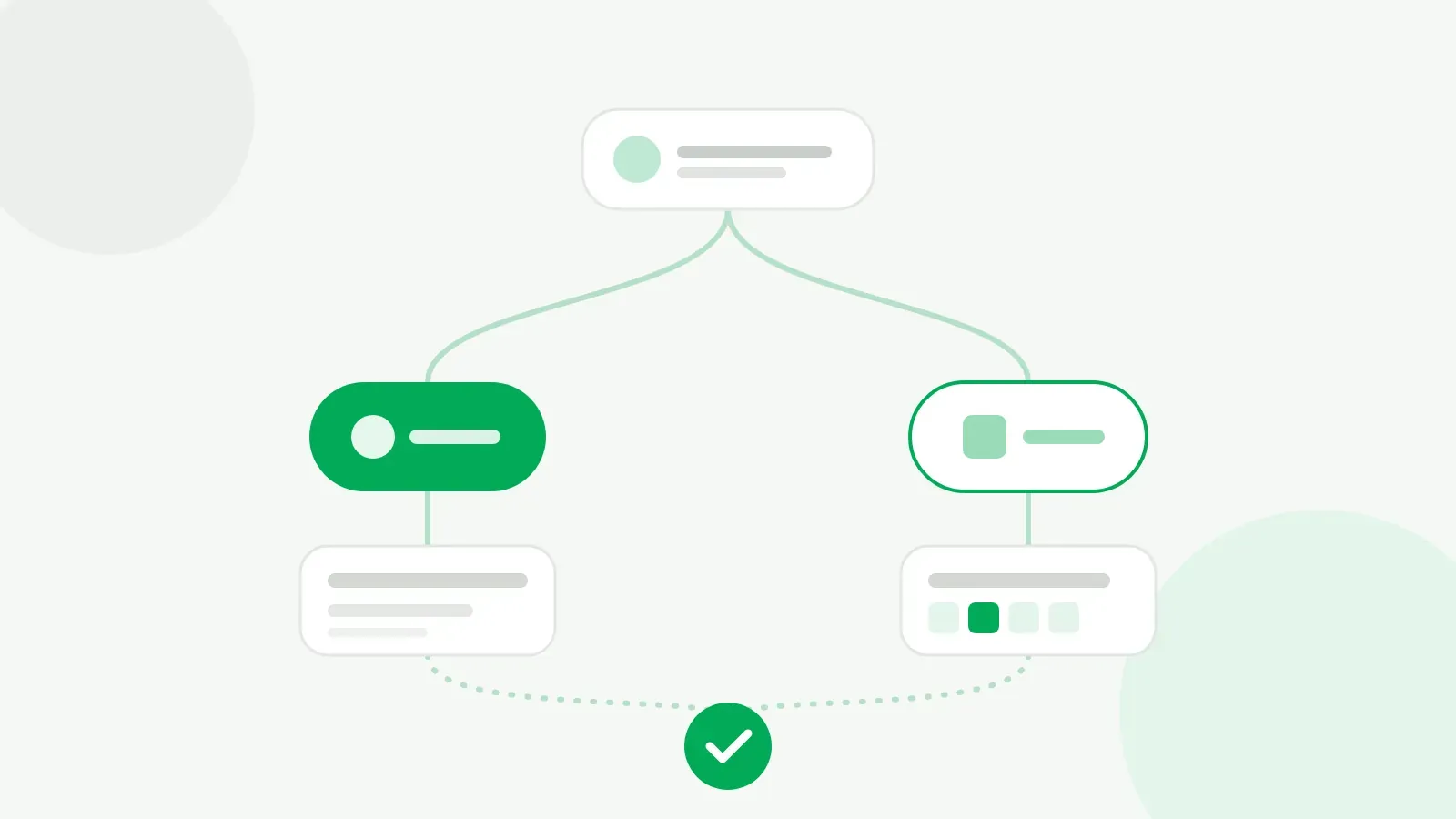
A basic form asks everyone the same questions, even the ones that don't apply to them. A chatbot is built around branching. If a visitor says they're a new customer, it asks one set of questions. If they're a returning customer, it skips ahead. Each person only answers what's relevant to them.
3. Visitors Can Ask Their Own Questions
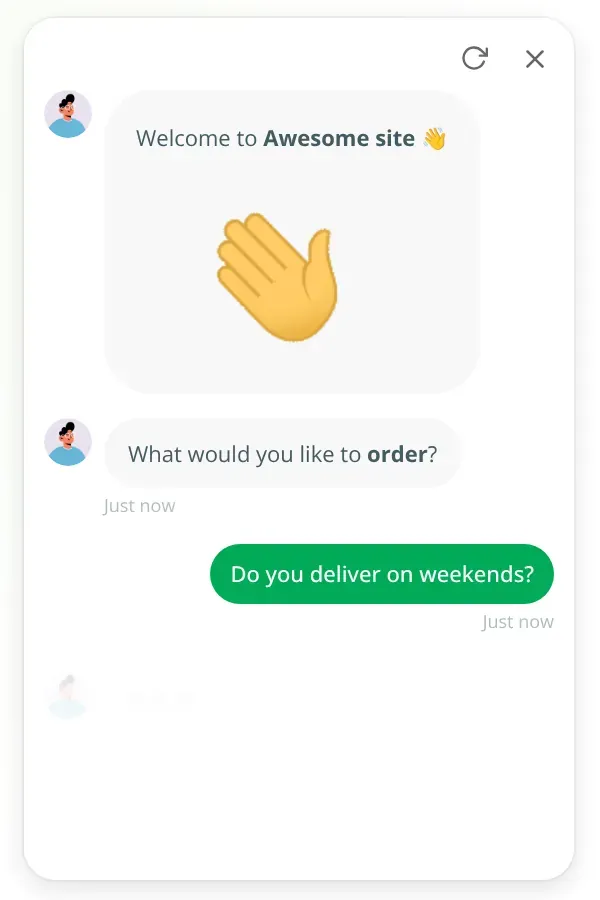
A basic form is a one-way street. If a visitor has a question halfway through ("Do you deliver on weekends?"), they may need to look elsewhere if the answer isn't on the page. With AI answers turned on, a chatbot can answer that question in the conversation, then carry on collecting the details you need.
4. It Feels Like Talking to Your Business
A greeting like "Hi! Tell me a bit about your project and I'll help you request a quote" feels personal in a way a page of fields doesn't. That small bit of warmth can make some visitors more comfortable sharing their name, email or phone number.
5. It Feels Natural on a Phone
A short, mobile-friendly form works fine on a phone. Longer forms can mean small fields, lots of scrolling and going back to fix errors. A chatbot shows one question at a time in a chat layout your visitors already know from messaging apps, and buttons for common answers mean less typing.
When a Simple Form Is Still the Better Choice
A chatbot isn't the right answer for every page. Stick with a plain form when:
- You only need one or two details. A newsletter signup that asks for an email address is already as short as it gets.
- It's a login, checkout or account page. Visitors expect a standard form there, and anything else can feel odd.
- People need to review everything at once. Long applications or legal forms work better when the visitor can see all the fields together.
- Your visitors are in a hurry and know exactly what they want. Some returning B2B buyers would rather fill in a few fields quickly than chat.
A good rule of thumb: if the form has more than a handful of questions, if the questions depend on each other, or if visitors often have questions before they submit, a chatbot is worth testing.
Example Workflows: Swapping a Form for a Chatbot
Here's what the switch could look like in three common small-business situations. These are example workflows to help you plan, not customer results.
A Dental Clinic Booking Appointments
The form: name, phone, email, new or returning patient, reason for visit, preferred date, preferred time and a notes box, all on one page. Someone at the clinic then calls or emails to confirm a time.
The chatbot: "Hi! Want to book a visit?" It asks whether the visitor is a new or returning patient, asks the reason for the visit with tap-to-choose buttons, shows available appointment slots to pick from, then asks for a name, phone number and email, and ends with an optional "Anything else we should know?"
It collects the same details as the form, but the visitor leaves with a confirmed booking instead of a request your team still has to follow up on. So this is a comparison of two different workflows, not just two formats. If you test them against each other, keep that in mind when you compare results.
A Home Renovation Business Requesting Quotes
The form: one long form for every kind of job, with fields that only make sense for some projects, and no way to ask "Do you work in my area?" before submitting.
The chatbot: it asks what kind of project the visitor has in mind, with buttons like Kitchen remodel, Bathroom and Something else. Say the visitor taps Kitchen remodel, then types "Do you work in my area?" With AI answers turned on, the chatbot answers from your service-area page, then carries on with the kitchen questions: rough size, timeline and budget range. Visitors can upload photos of the space right in the chat, so your quote starts with better information.
A Course Creator Collecting Leads
The form: "Enter your email to get the free guide."
The chatbot: it asks what the visitor wants to learn and their current level, then offers a different guide based on the answers. A beginner gets the starter guide, and someone more experienced gets the advanced checklist. Then it asks for an email address to send it to.
If everyone gets the same PDF, keep the simple email form. The extra questions only earn their place when they change what the visitor receives.
For a real-world story, read our case study on using interactive chatbots for lead generation.
How a Chatbot Helps: Switching From a Form to Collectchat
Collectchat is a no-code website chatbot builder, so you can replace a form without touching your site's code. Here's how to do it.
- Start from a template. Pick one that matches your form, such as Lead Generation, Appointment Booking or Contact Us. You can also browse all website chatbot templates.
- Add your questions. Copy over the fields from your current form. Use Logical Jump to branch to different questions based on earlier answers.
- Turn on AI answers (optional). Let visitors ask their own questions at any step. Answers come from your website, the files you upload and your FAQs.
- Choose where answers go. Get an email when a visitor finishes, or send responses to Google Sheets, HubSpot, Slack and other tools you already use.
- Add it to your website. Show it as a chat widget in the corner of your site, place it inline where your form used to be, or share it as a full-page link. It works on WordPress, Shopify, Wix, Squarespace and custom sites.
Some steps, such as Logical Jump, appointment booking, photo uploads and some integrations, may depend on your plan. Check the Collectchat pricing page to see what's included in yours.
Tips to Get the Most From Your Chatbot
- Open with what's in it for them. "Tell us about your project to request a free quote" works better than "Hello."
- Ask the easiest question first. Save contact details for the end, once the visitor is already involved.
- Only ask what you'll use. Every extra question is one more chance to lose someone.
- Use buttons where you can. Tapping is faster than typing, especially on a phone.
- Test it fairly. Where you can, split traffic on the same page between your form and your chatbot, and measure qualified leads per 100 page visitors, not just the total number of leads. Keep the offer, placement and required information the same in both versions.
Looking for more ideas? Here are 10 ways to use chatbots for conversion rate optimization, and the surprising reasons you get low conversions despite high website traffic.
Summing Up
In the chatbot vs form debate, there's no single winner for every page. A short form works well for quick, simple requests. When visitors need guidance or have questions before they submit, like the homeowner asking whether you work in their area, a chatbot is worth testing.
The easiest way to find out is to try it on your own site. Create a free chatbot and start with the same questions as your current quote form. Compare qualified leads per 100 visitors. Then, if your plan supports them, test whether branching or photo uploads improve the results.
FAQs
Is a Chatbot Better Than a Contact Form?
It depends on the request. For a short, simple request, a contact form works well. When visitors need guidance or have questions before they submit, a chatbot is worth testing, because it asks one question at a time and, with AI answers turned on, can answer questions along the way.
Will a Chatbot Annoy My Website Visitors?
Not if it's helpful and to the point. Keep the greeting short, say what the visitor gets, and only ask questions you need. You can also show it inline on a page instead of as a pop-up.
Can I Keep My Existing Form and Add a Chatbot?
Yes. Many businesses start by adding a chatbot to one page and keep their form elsewhere. Once you see how each performs, you can decide where to use which.
Do I Need Coding Skills to Replace a Form With a Chatbot?
No. With Collectchat, you build the chatbot in a visual builder or start from a template, then copy and paste a snippet into your website. There's also a free WordPress plugin.