
Log in to WordPress
Log in to your WordPress or WooCommerce Admin section (E.g. https://yourWordpressWebsite/wp-admin/). Select Plugins. Click on Add New option.
Install the Plugin
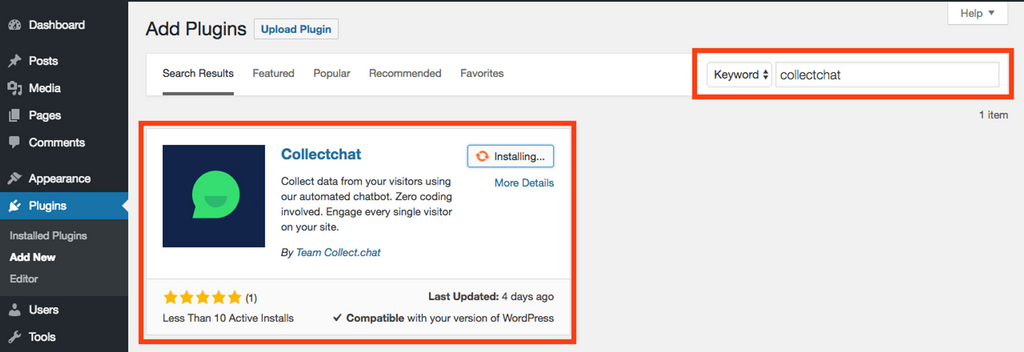
Search for "Collectchat" in the Keyword space. Select the Collectchat WordPress plugin and click Install.
Activate the Plugin
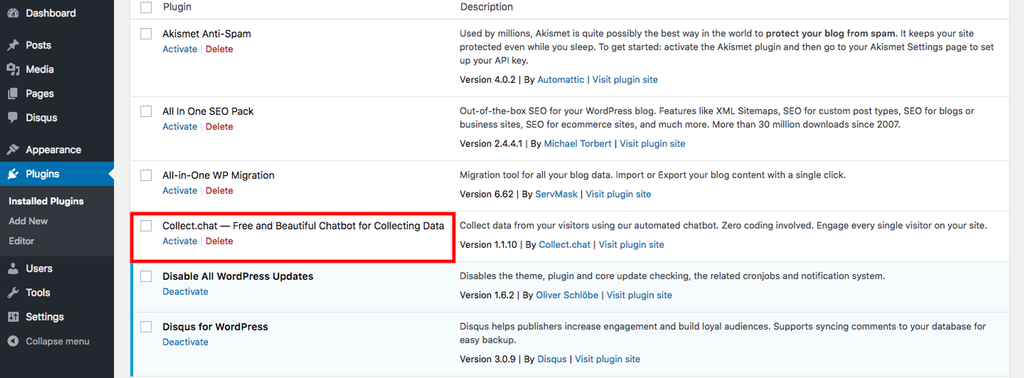
After installation, find the Collectchat WordPress plugin and click on Activate.
Copy the Code Snippet
Log in to your Collectchat account. Go to Edit.
Click Share.
Please make sure you have selected Widget as your Chatbot type under Settings > General.
Select the type of your website. Here, we will choose Wordpress. Select Widget if you would like to use the chatbot widget on your website. Then, copy the code snippet of your chatbot widget.
 If you will be embedding the chatbot in your web page, you can click on Embed and copy the URL.
Edit Plugin Settings
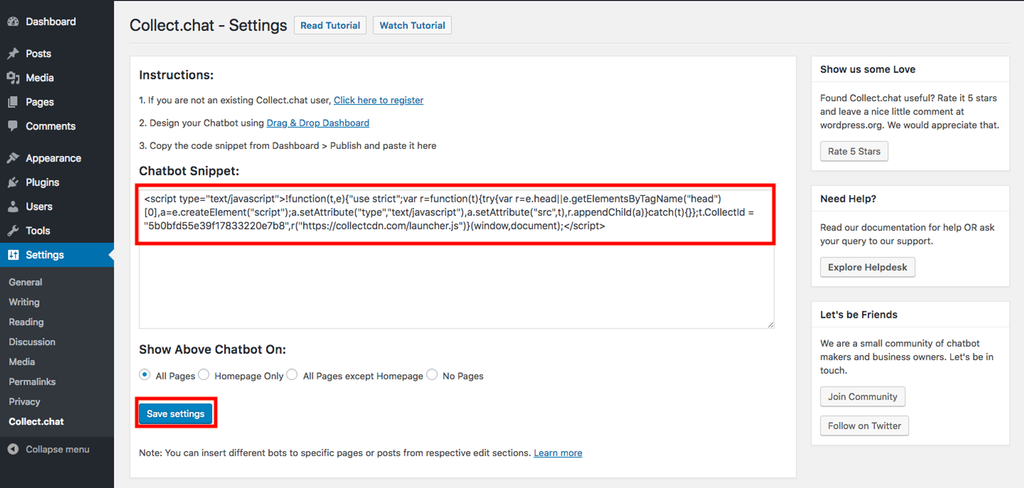
Click on Settings of the plugin.

Add the code snippet of the chatbot widget in the space provided.
Preview on Website
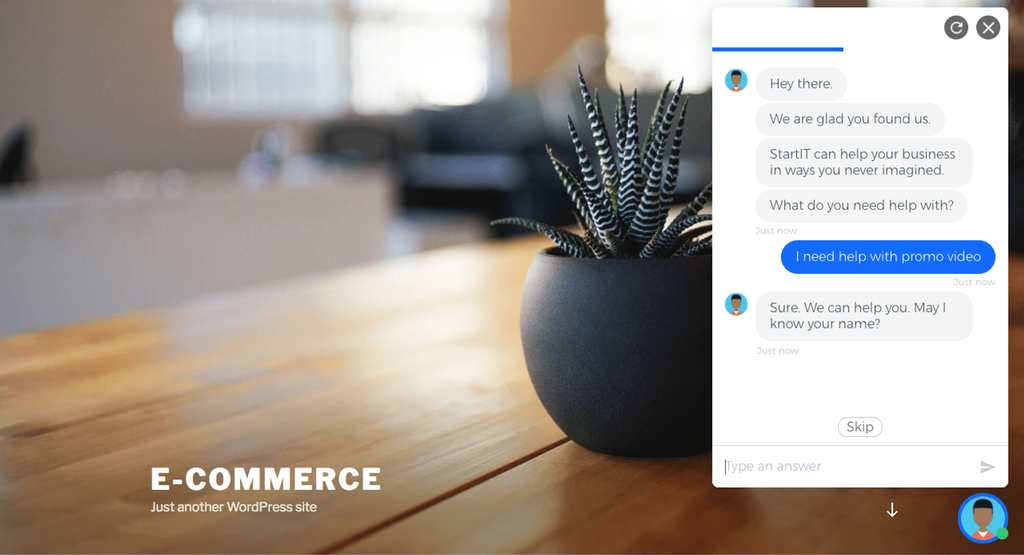
You're done! Now all visitors to your WordPress website will be able to see the chatbot widget.
Tip
In WordPress, how can I control the behaviour of the chatbot?
In WordPress, how can I add a different chatbot for a different page?
In WordPress, how can I embed a chatbot inside a page or a post?
Note
Keep in mind that if you’re using a caching plugin in WordPress, it may take a few hours for the Collectchat widget to show up on your site. If it isn’t showing up, try clearing your cache and that should get it live.
Warning
If you are on wordpress.com, you need to upgrade to business plan to be able to install any plugin. There could be other reasons that prevent you from installing Collectchat plugin. They are listed here.
Still need help?
Contact us