When you are using your form as a chat widget, you can set the welcome message simply by using the toggle switch under Edit > Design.
This will set the first question in the form as your Welcome message. In the following example, you can see the first question of the form set as an interactive welcome message.
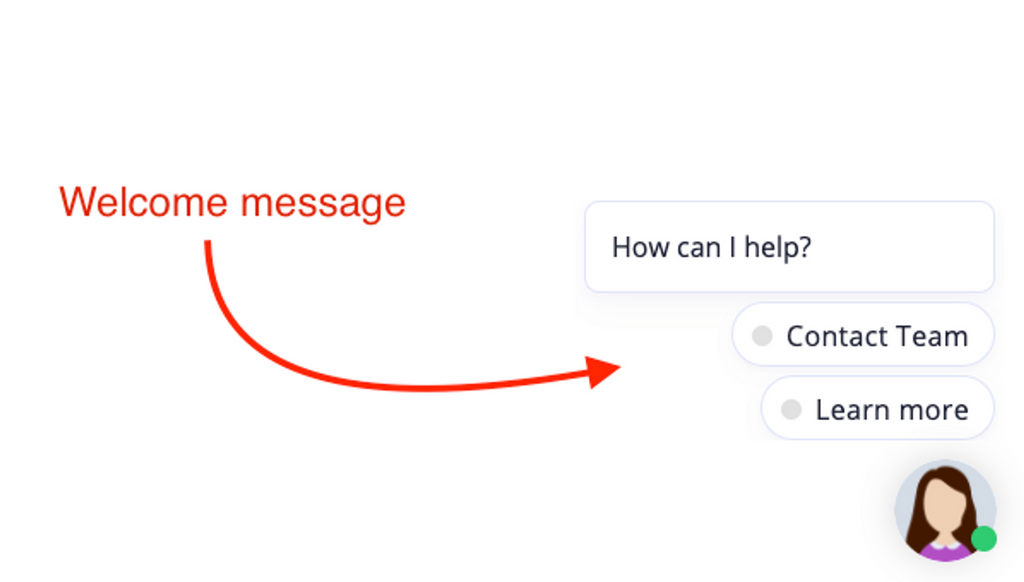
Among the question types, currently we support three interactive welcome messages.
Multi Choice type to show options
Appointment type to book appointments
Links type to show links
If your first question is of any other question type, they will be shown as a plain message. They will become active when the user clicks on the message or avatar.
Tip
Since this is the first message seen by your customers, make sure to use the best catchy words to grab their attention.
You can add images or short videos (we recommend an aspect ratio of 1:1 for images or videos) inside the message to make the welcome message more appealing.
Note
If you want to make changes to Welcome Message, please make sure that your Form type is Widget. (Settings > General > Form type)
Still need help?
Contact us