
Installing the chat widget on your website is very easy. Every chat widget has a code snippet associated with it. You will find this code snippet in the Share section of the dashboard. By pasting this code snippet to your website's source code, the chat widget will become live on your site.
This installation is a one-time process. Once the code snippet has been added to your website, any change you make in the chat widget will automatically reflect on it the very next second. You only have to replace the code, if you are planning to use a different chat widget. Here are the installation steps.
Copy the Code Snippet
Go to Edit.
Click on Share. Please make sure you have selected Widget as your Form type under Settings > General.

Select Website and copy the code snippet of your chat widget.
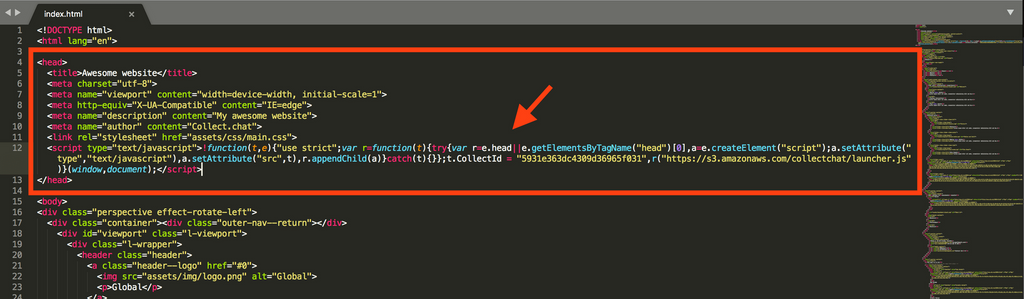
Paste the Code Snippet
It is wise to paste the code before closing the head tag.
Preview on Website
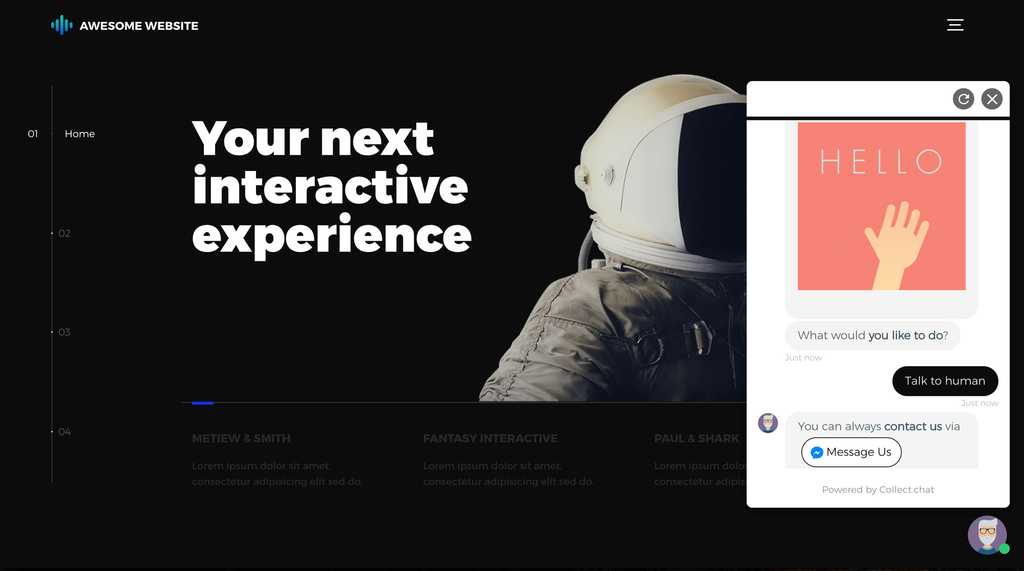
Go to your website and ensure that the chat widget has loaded properly.
Tip
You can also open the chat widget using a custom link by:
<a href="#" onclick="collectchat.open()">Open Chat</a>Note
Please note every chat widget has a unique Form ID. This will be required only when you need to raise a customer support request.
Still need help?
Contact us